Getting a video onto your own page takes three steps: create a library, upload the file, and copy the embed code. You can do each one in the dashboard or with the bunny.net CLI. You need a bunny.net account and a video file.
Create a video library
A video library holds your videos along with their player, encoding, and security settings.
Open Stream
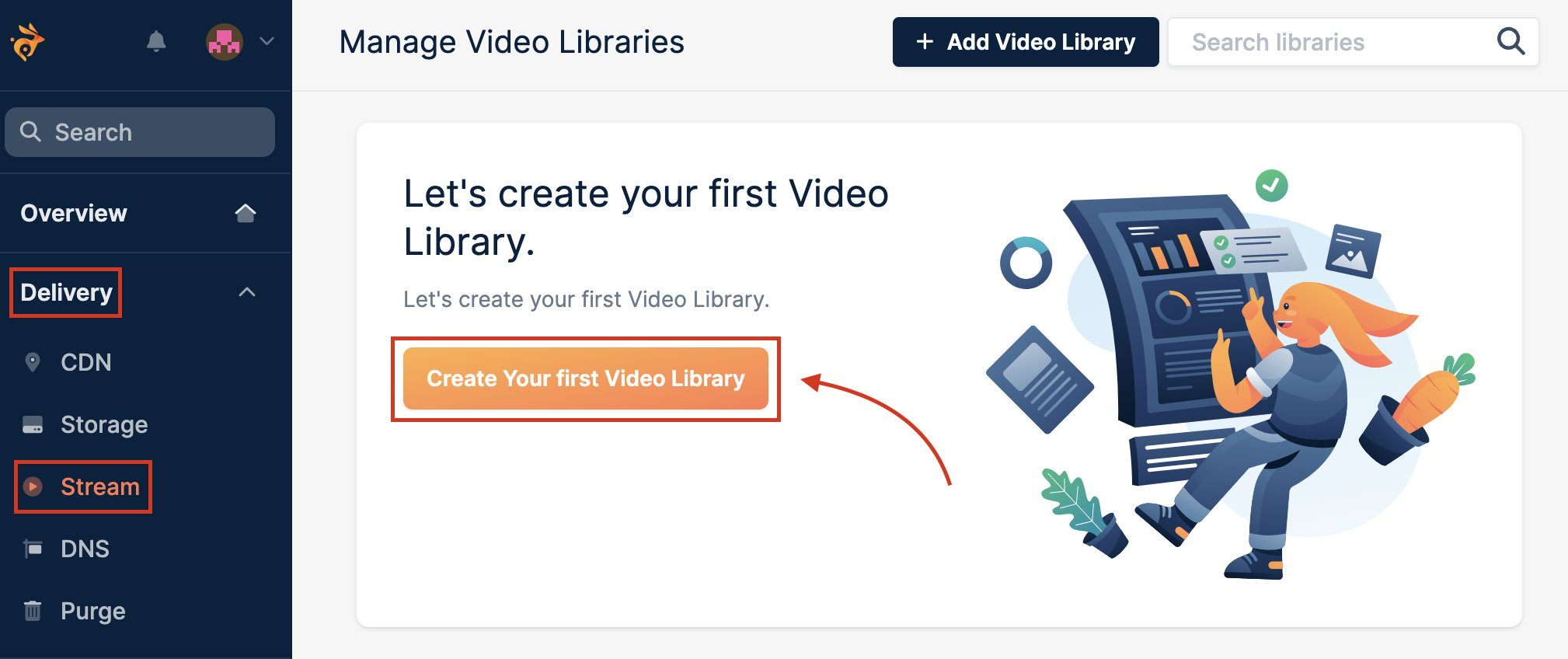
In the dashboard, go to Delivery > Stream and click Create Your first Video Library. Name the library
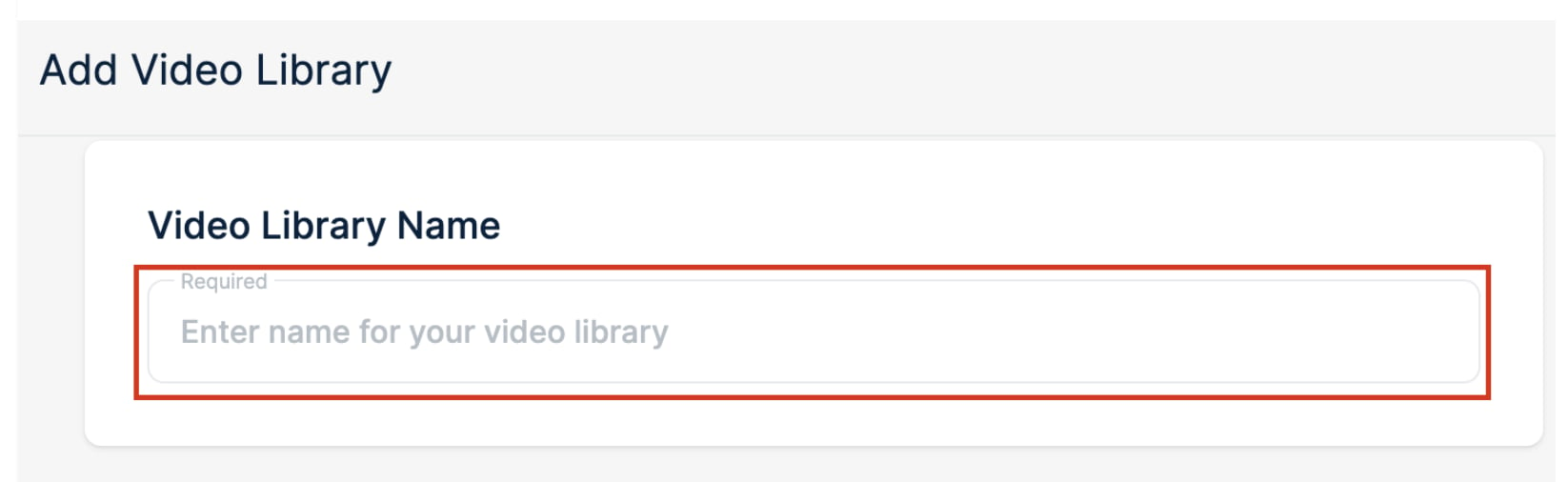
Enter a name you’ll recognise in the dashboard. Choose storage regions
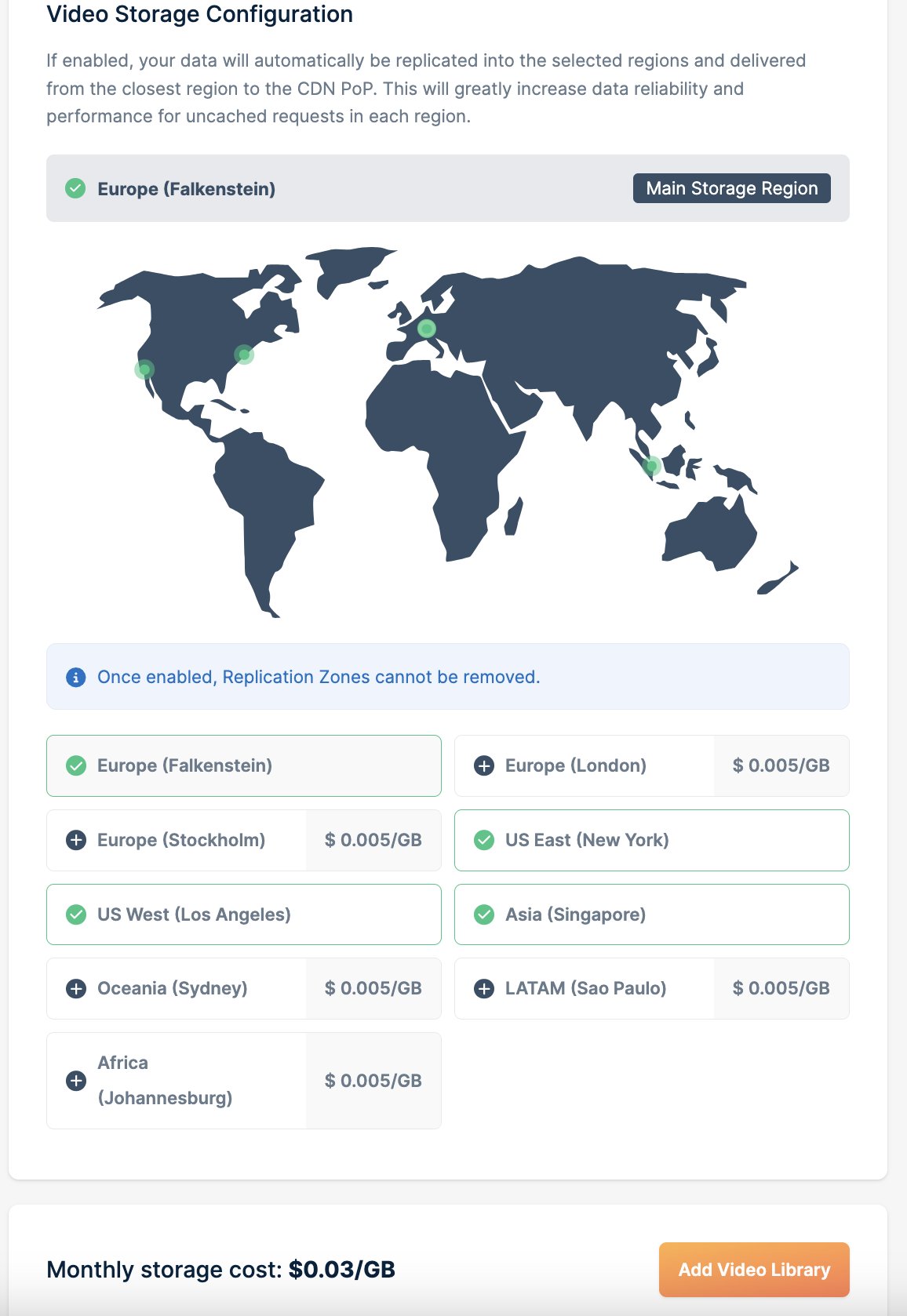
We replicate your videos to every region you enable. Pick at least two to keep a copy if one region has a hardware failure, and one per continent where your viewers are for the fastest uncached delivery.Replication regions can’t be removed once they’re enabled.
Create it
Click Add Video Library.
Create a library and link the current directory to it. The upload command below uses the linked library.The library stores videos in DE. The CLI asks if you want to replicate to other regions (SG, LA, and NY preselected).The command then offers to save the library ID and API key to .env, and to add videos. You can skip adding videos for now, because the next step uploads one.Replication regions can’t be removed once they’re enabled.
Upload a video
Open the uploader
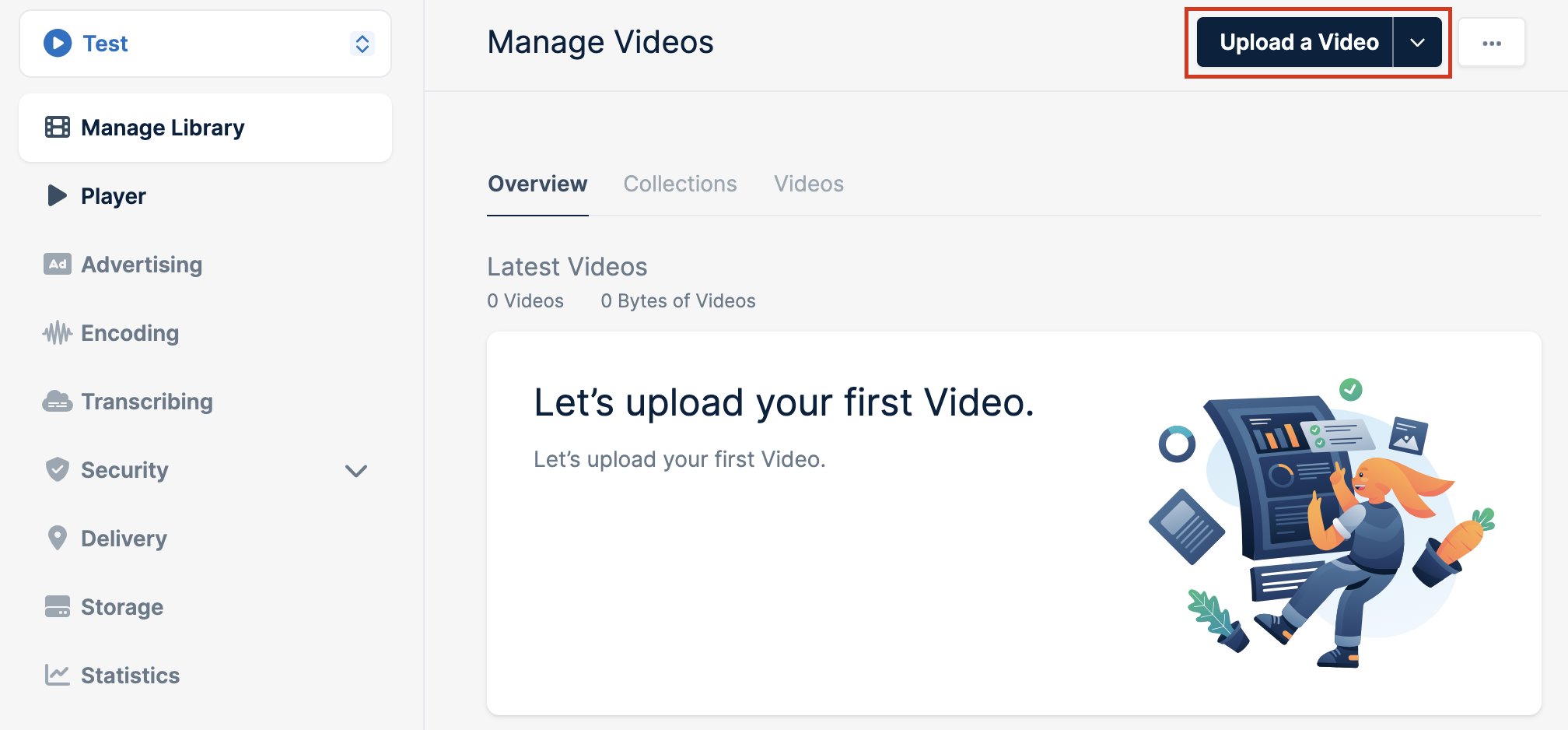
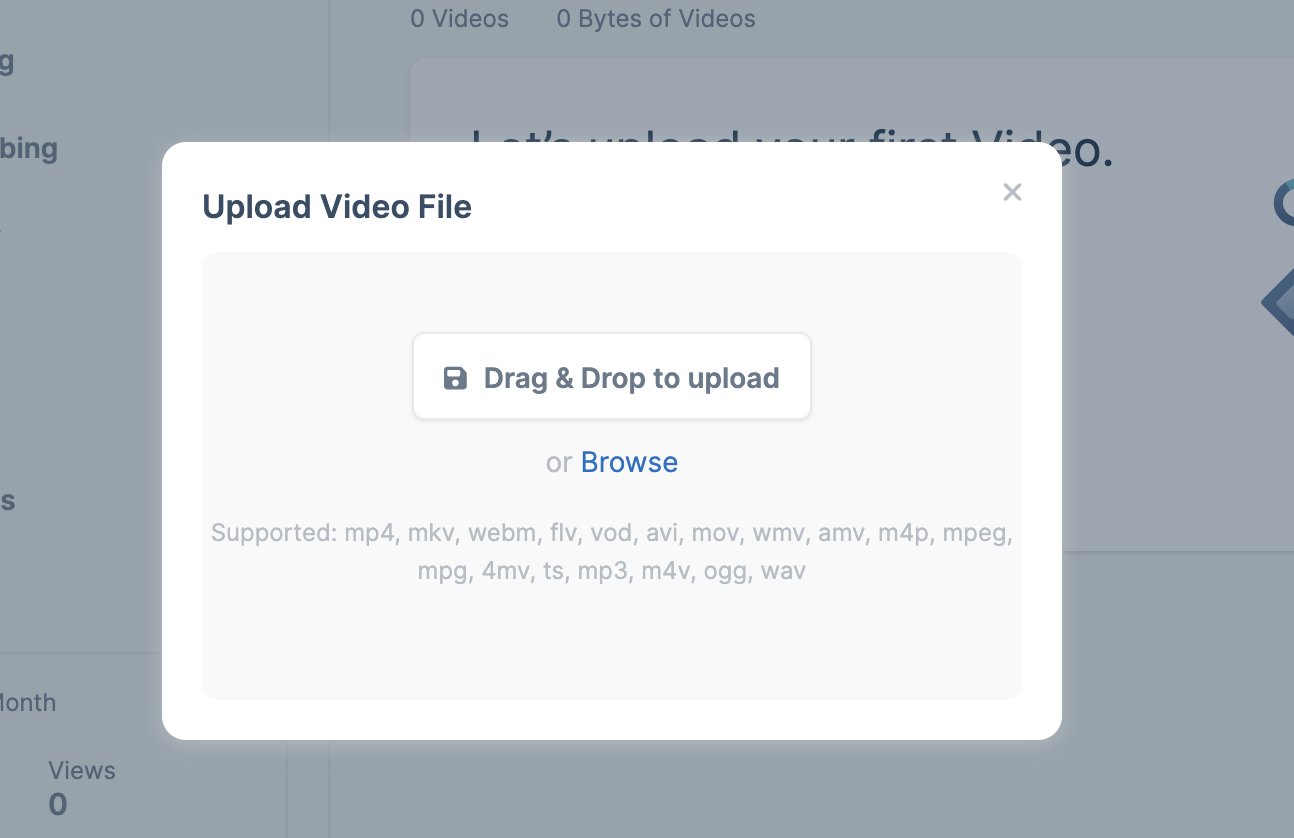
In your new library, click Upload a Video. Add your file
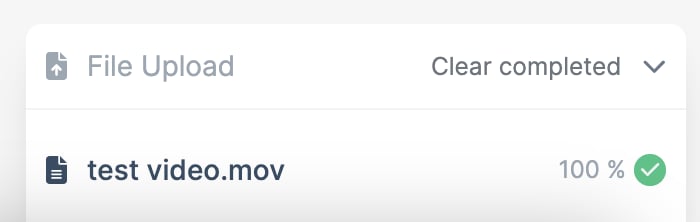
Drag the file into the dialog or click Browse. The upload starts straight away. Wait for encoding
We encode the video into several resolutions once the upload reaches 100%, so it plays smoothly on any device and connection. Upload the file to the linked library:The command prints the video ID and a Direct Play link you can share. Encoding starts when the upload finishes. Run bunny stream videos show <video-id> to check on it. Share or embed it
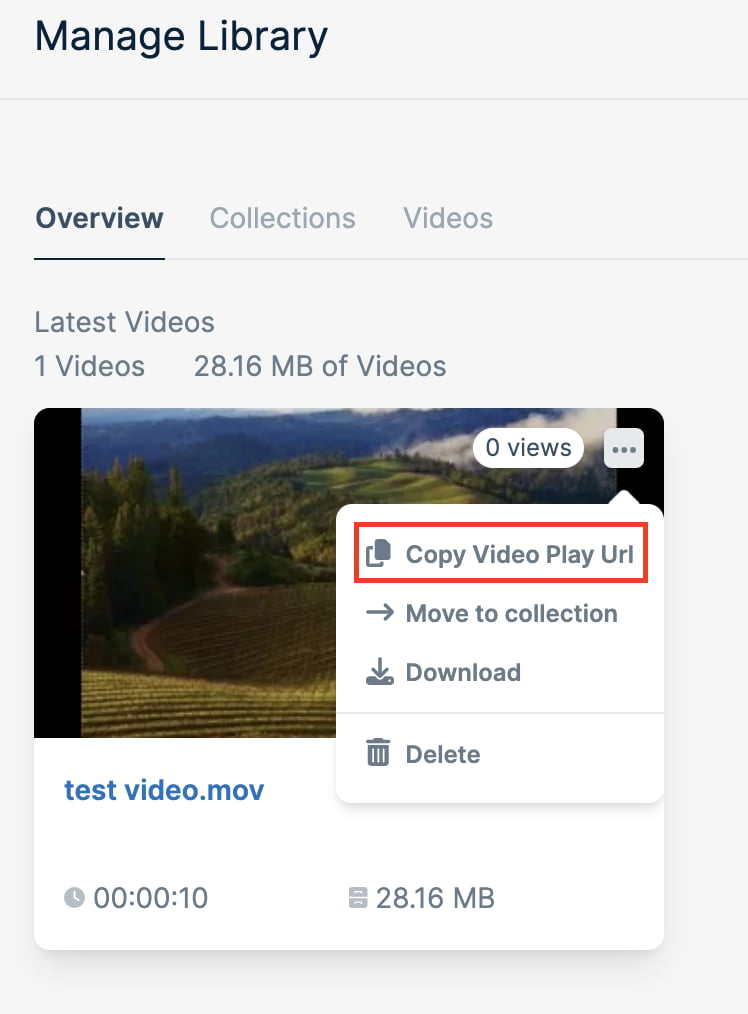
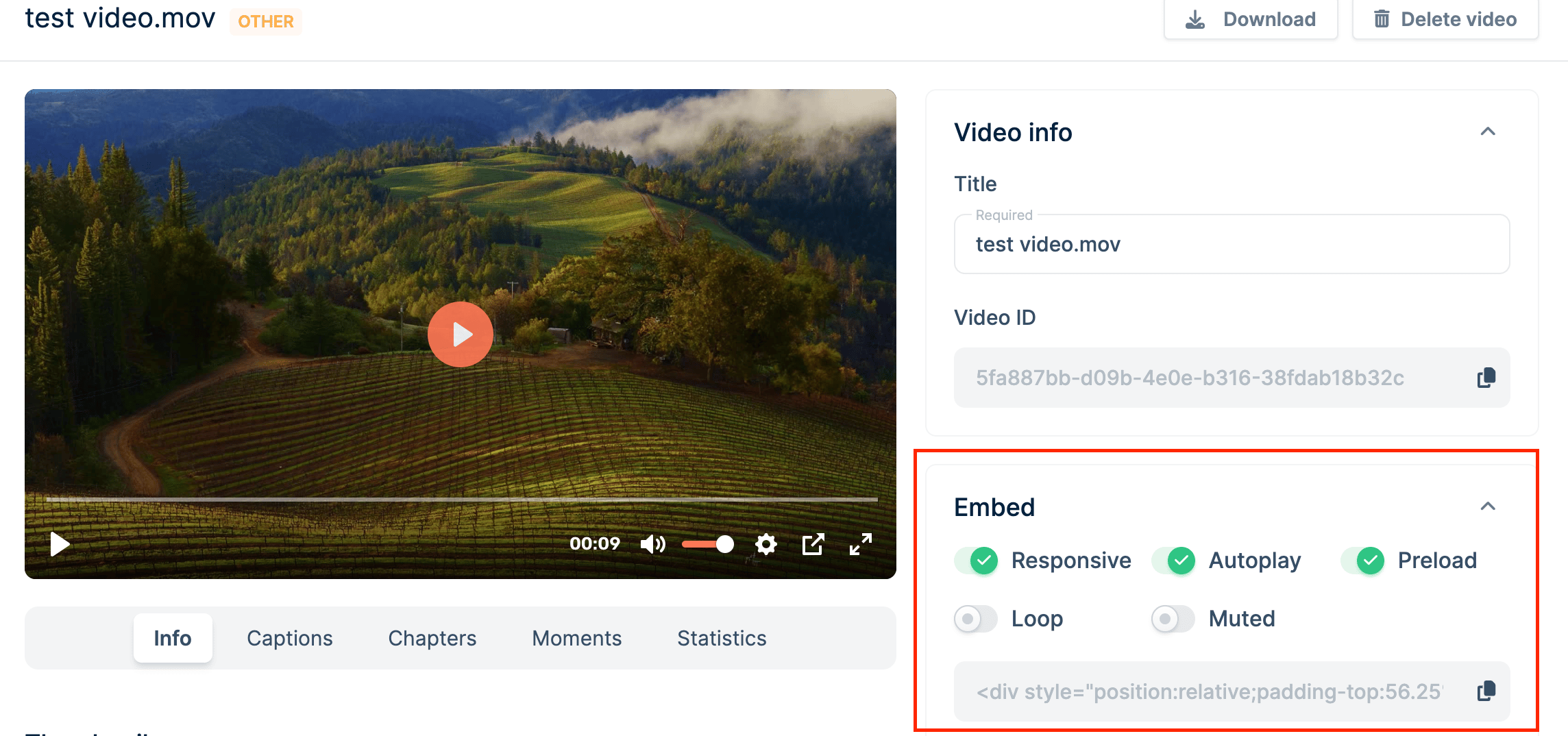
To share a link, open the video’s menu and click Copy Video Play Url. The link opens the video in Bunny Player.To put the video on your own page, open it and copy the code from the Embed panel. The toggles above it set autoplay, looping, muting, and preloading for that embed.Paste the code into your page’s HTML where the player should appear. Print the video’s embed URL:Use the URL as the src of an <iframe> on your page. See bunny stream for every Stream command. Control the player from your app
Each guide builds a Bunny Player component for your framework, with play, pause, seek, and progress events wired up through player.js.
Last modified on October 20, 2026